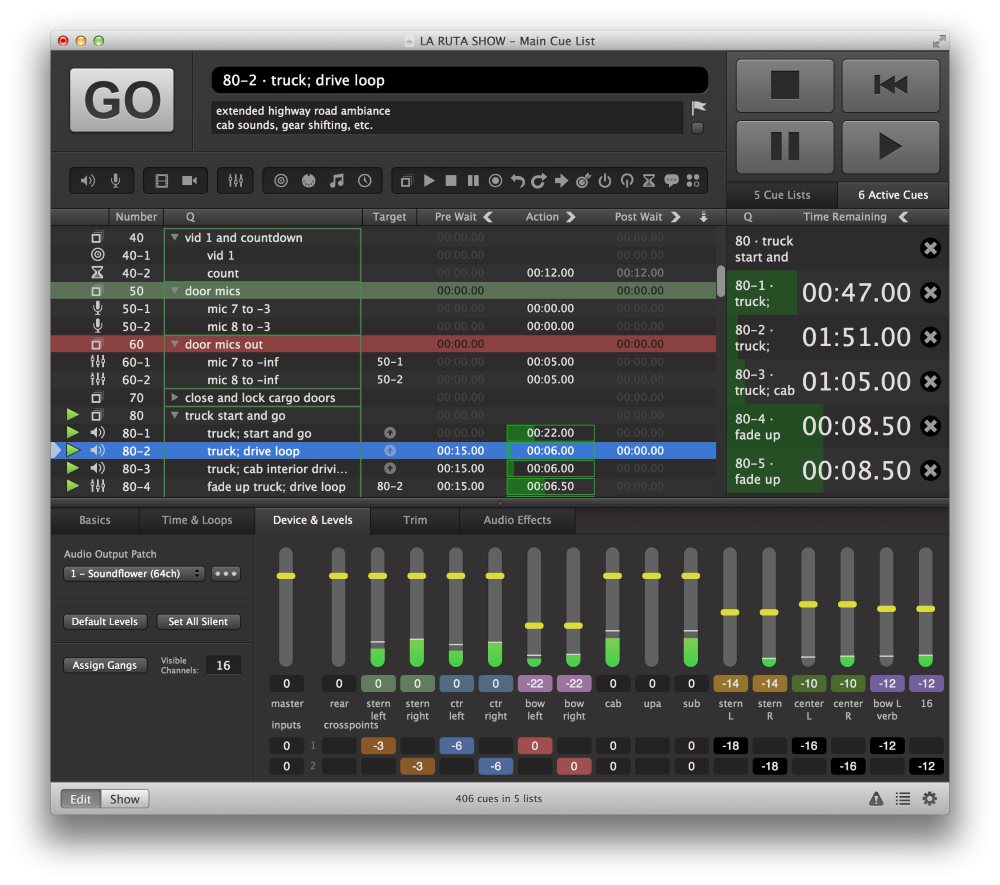
QLab 为您的 Mac 提供现场演出控制功能。为戏剧、舞蹈、作曲、装置艺术等场景创建媒体设计方案。从单一工作区即可回放音频、视频和 MIDI。QLab 4 引入了全新的灯光提示(Light cue),对 iOS 版 QLab Remote 进行了重大更新,并新增了 40 余项功能。
设计工具
- 无限数量的提示列表(Cue Lists),且每个列表含无限数量的提示
- 无限数量的提示手推车(Cue Carts),每个手推车包含 1 至 64 个按钮
- 在编辑模式下进行设计,在演出模式下运行表演
- 非破坏性设计工具,绝不修改您的媒体文件
- 支持撤销任意编辑操作
- 可本地“试演(Audition)”提示,无需向舞台发送音频、视频或灯光输出
- 提供提示模板和工作区模板
- 具备“录制提示序列”工具,可捕捉时间点并原样复现
- 具备“粘贴提示属性”工具,可将一个或多个提示的属性选择性粘贴至工作区中的其他提示
- 支持对提示列表和提示手推车进行文本搜索
- 提供丰富的 AppleScript 和 OSC API
- 配备全面的“状态窗口”,协助排查故障
- 通过 QLab Remote 实现强大且无缝的远程编辑
灯光控制
- 控制无限数量的 Art-Net DMX 宇宙
- 创建无限数量的灯光设备(类似通道,但支持自定义名称,而非仅限于数字)
- 创建无限数量的灯光组,用于将相关设备归类,如“全部”、“舞台右侧”、“LED”、“地面”或“左前地面”
- 同时支持常规调光器及具有多重参数的复杂灯光(支持基于百分比的参数,以及 8 位和 16 位直接 DMX 参数)
- QLab 式电平渐变:轻松构建可叠加和复用的视觉效果与外观。灯光提示仅改变您设定的电平,其余部分保持不变
- 通过串联灯光提示,用简单的部件构建复杂的提示序列,随后像多米诺骨牌一样通过单次“GO”触发整个序列,打造精密的灯光设计
- 与 QLab 中所有提示一样,灯光提示可随时被复制、粘贴、重排序、暂停、恢复及停止
- 灯光提示支持 QLab 所有渐变曲线,包括线性、S型曲线或完全自定义的形状
- 利用灯光仪表盘(Light Dashboard)查看和操控所有灯光的当前电平
- 如需在仪表盘上进行现场微调,可选择让 QLab“随时间推移”应用新数值,实现平滑淡入
- 打开试演窗口(Audition Window),可在仪表盘中“盲视”查看灯光提示的效果。关闭试演窗口,仪表盘即刻恢复显示灯光的实时状态
- 在仪表盘中调整灯光后,可执行以下操作:
- 仅基于更改部分创建新提示
- 基于所有设备创建新提示
- 基于更改部分更新最后运行的灯光提示
- 追踪各项设备的编辑来源,定位最近修改该设备的提示
- 将您常用的 MIDI 控制器映射至灯光指令,用于编辑灯光仪表盘或单个提示
- 针对电动 MIDI 硬件,QLab 支持来自灯光仪表盘和单个灯光提示的 MIDI “反馈”(即“推子随动/Flying Faders”功能)
- 使用 QLab 强大的灯光指令语言,配合自动补全、设备或组参数寻址、范围设置、临时组及指令历史记录功能,高效编辑灯光仪表盘和单个灯光提示
- 随时将灯光提示切换为滑块、磁贴或原始指令文本视图
- 将灯光仪表盘切换为滑块或磁贴视图
- 通过键盘输入(命令行)或鼠标(点击拖拽)编辑灯光
- 轻松从任意提示中删除单个灯光指令,并支持撤销任意编辑
- 在滑块视图中,可将组指令展开为该组当前包含的所有独立设备
- 在滑块视图中,指示器会显示提示中每个灯光的当前实时数值
- 在滑块视图中,可选中多个指令进行临时“联动(Gang)”,以便同步调整其数值
- 快速识别一组设备是设定为统一电平还是混合电平
- 选中多个灯光提示,即可批量编辑它们共有的任何灯光指令(或一次性向所有选中提示添加新指令)
- 可利用 AppleScript(外部脚本或通过脚本提示调用),实现如通过算法生成一系列灯光提示等高级编程操作
- 通过 OSC 消息控制灯光仪表盘及单个灯光提示
音频功能
- 支持多达 64 通道的音频输出
- 支持多达 24 通道的音频文件
- 支持多达 24 通道的现场音频输入
- 提供音频波形视图
- 可对媒体文件进行无限片段分割,以实现循环和即兴反复
- 实现跨多个提示的采样级精确回放同步
- 支持音频声像和音量渐变
- 可自定义输出通道名称
- 可编辑音频设备路由
- 支持在任意提示、提示输出及设备输出端应用音频效果
- 支持音频效果的动态渐变
视频功能
- 支持全屏或自定义几何结构的视频提示
- 支持视频渐变和动画
- 支持高达 1000 层视频叠加
- 支持多投影仪下的遮罩和边缘融合
- 支持图像扭曲和梯形校正
- 提供基础视频效果
- 支持通过摄像机提示(Camera cue)接入实时摄像机输入
- 支持 Syphon 输入与输出
- 支持 Blackmagic 输入与输出
- 提供文本与字幕提示(Text cue)
演出控制
- 可使用网络提示(Network cue)发送 OSC 或 UDP 消息
- 支持对 OSC 消息进行 1D 或 2D 时间维度上的渐变
- 可将工作区中的实时数值注入到发出的 OSC 消息中
- 通过 MIDI 提示发送所有 MIDI 及 MIDI 演出控制消息
- 通过 MIDI 文件提示,可播放 MIDI 文件以发送 MIDI 消息
- 通过脚本提示(Script cue)运行自定义 AppleScript
- 通过时间码提示(Timecode cue)生成 LTC 或 MTC 输出
- 支持通过接收的 LTC 或 MTC 时间码触发提示列表
- 支持通过 OSC 和 MIDI 进行远程控制
系统要求
- 英特尔 64 位处理器,OS X 10.10 或更高版本
官网
https://figure53.com/qlab
QLab provides live show control for your Mac. Create media designs for theatre, dance, composition, installation, and more. Play back audio, video, and MIDI from a single workspace. QLab 4 includes an all-new Light cue, a huge update to QLab Remote for iOS, and over 40 other new features.
Design Tools
– Unlimited Cue Lists with unlimited cues
– Unlimited Cue Carts with 1 to 64 buttons per cart
– Design in Edit Mode and run your performance in Show Mode
– Non-destructive design tools never modify your media files
– Undo any edits
– “Audition” cues locally without sending audio, video, or lighting output to the stage
– Cue templates and Workspace templates
– “Record cue sequence” tool, to capture timing and play it back again the same way later
– “Paste cue properties” tool, to selectively paste properties from one or more cues onto other cues in your workspace
– Text search of cue lists and cue carts
– Extensive AppleScript and OSC APIs
– A comprehensive Status Window to guide troubleshooting
– Powerful and painless remote editing via QLab Remote
Lighting
– Control unlimited Art-Net DMX universes.
– Create unlimited light instruments (like channels, but can be named anything, not just numbers).
– Create unlimited light groups to collect related instruments together, like “all”, “stage right”, “LEDs”, “floor”, or “floor front left”.
– Use both conventional dimmers and more complex lights with multiple parameters (includes support for percentage-based parameters, as well as both 8-bit and 16-bit direct DMX parameters.)
– QLab-style levels fading: it’s simple to build looks and effects that you can layer and reuse. A Light cue changes only the levels you set in the cue, and leaves the rest unchanged.
– Build sophisticated lighting designs by chaining Light cues together to build complex cue sequences out of simpler parts, then trigger the sequence with a single “GO” like a chain of dominoes.
– As with all cues in QLab, Light cues can be copied, pasted, reordered, paused, resumed, and stopped at any time
– All QLab fade curves are available for Light cues; including linear, s-curve, or totally custom shape fades.
– See and manipulate the current levels of all your lights using the Light Dashboard.
– If you need to sneak in live edits from the Dashboard, you can optionally tell QLab to apply the new values “over time” so they’ll fade in smoothly.
– Open the Audition Window to view the effects of light cues “blind” in the dashboard. Close the Audition Window, and the dashboard will instantly revert back to show the live state of your lights.
– Adjust your lights in the dashboard, then:
-Create a new cue with just the changes,
-Create a new cue with all instruments,
-Update the last-run light cue with the changes, or
– Trace back the edits to each cue that most recently modified each instrument.
– Map your favorite MIDI controller to light commands, for editing either the light dashboard or individual cues.
– For motorized MIDI hardware, QLab supports MIDI “feedback” from the light dashboard and individual light cues. (Aka “flying faders”.)
– Use QLab’s powerful light command language, with autocompletion, instrument or group parameter addressing, ranges, ad-hoc groups, and command history, to efficiently edit both the light dashboard and individual light cues.
– View light cues as sliders, tiles, or raw command text at any time.
– View the Light Dashboard as sliders or tiles.
– Edit lights via keyboard entry (on the command line) or with the mouse (via clicking and dragging.)
– Easily delete individual light commands from any cue, and of course undo any edits.
– In slider view, expand group commands into all the individual instruments currently in the group.
– In slider view, indicators show the current live value of each light in a cue.
– In slider view, select multiple commands to temporarily “gang” them, so you can adjust them up or down together.
– Quickly see when a group of instruments is set to all the same level or a mix of different levels.
– Batch-edit multiple light cues by selecting them and then simply editing any light command they all share. (Or adding a new command to all of them at once.)
– Use AppleScript, either externally or via Script cues, for advanced programming techniques like algorithmically generating a series of Light cues.
– Control both the Light Dashboard and individual Light cues via OSC messages.
Audio
– Support for up to 64 channels of audio output
– Support for up to 24-channel audio files
– Support for up to 24 channels of live audio input
– Audio waveform view
– Unlimited slices of your media files for looping and vamping
– Sample-accurate playback synchronization across multiple cues
– Audio panning and volume fading
– Customize output channel names
– Edit audio device routing
– Audio effects on any cue
– Audio effects on cue outputs
– Audio effects on device outputs
– Fade audio effects dynamically
Video
– Full-screen or custom geometry for Video cues
– Fade and animate videos
– 1000 layers of video
– Masking and edge-blending across multiple projectors
– Warping and keystone correction
– Basic video effects
– Live camera input with the Camera cue
– Syphon input & output
– Blackmagic input & output
– Text & titles with the Text cue
Show Control
– Send OSC or UDP messages using the Network cue
– Fade your OSC messages over time, in 1D or 2D
– Inject live values from your workspace into outgoing OSC messages
– Send all MIDI and MIDI Show Control messages with the MIDI cue
– Send MIDI messages by playing MIDI files with the MIDI File cue
– Run your own AppleScripts with the Script cue
– Generate LTC or MTC output with the Timecode cue
– Trigger cue lists from incoming LTC or MTC timecode
– Remote control via OSC and MIDI
Requirements: Intel, 64-bit processor OS X 10.10 or later
Home Page – https://figure53.com/qlab